Open the Practice tab, set your staff, key and input in the green Current settings bar, choose Notes on Lines, and start with Flashcards. Move on to Note Runs, then play whole songs in the Melodies tab. One rule matters more than any other when you play a melody on the keys or buttons: keep going after a mistake. The app has already moved to the next note, so going back to fix it counts as another miss.
1. First launch: one learner or many
The app asks one question: How many people will be learning?
- One Person gives customized practice. In Flashcards on the keyboard or buttons, the app notices which notes you miss and brings them back more often until they stick.
- Multiple Learners gives random notes every practice. Pick it for a family iPad or a classroom device shared by several students.
You can skip the question. On English-language devices there is also a Learn tab with short lessons, such as the line notes and their Every Good Boy Deserves Fudge mnemonic.
2. Set your staff, key and input
The green Current settings bar at the top of the Practice tab shows your staff, your key and how you answer. Tap it to change them.
- STAFF: Treble, Bass or Grand. With Grand you also choose HAND: Right, Left or Both.
- KEY: C major, flat keys down to D♭ and sharp keys up to B. The notes you drill follow the key signature, so this is how you practice reading in the key of the piece you are learning.
- INPUT: Keyboard (an on-screen piano), Buttons (note-name buttons) or Mic (your real instrument or voice). A MIDI keyboard, USB or Bluetooth, works automatically as soon as it is connected.
Two more options live in Settings. Note names switches the labels between C D E F G A B, C D E F G A H, Do Re Mi Fa Sol La Si and Japanese names (see Do Re Mi vs A B C). One-Octave Mode shows a compact keyboard with no scrolling, where any octave of the right note counts as correct.
3. Choose your notes
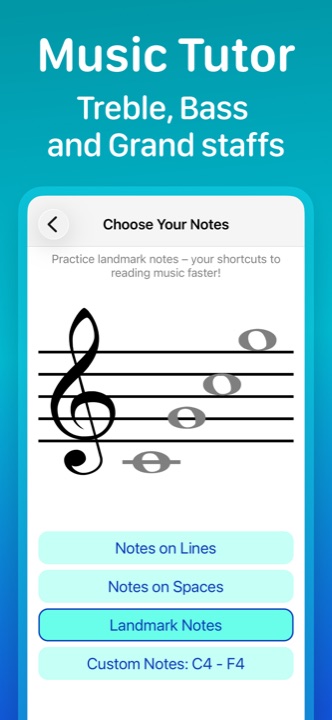
Before each activity, the Choose Your Notes screen asks which notes to drill:
- Notes on Lines: the best starting point. Lines are the easiest notes to see.
- Notes on Spaces: once the lines are solid, each space note is simply the letter between two lines you already know.
- Landmark Notes: anchors such as middle C and treble G that fluent readers recognize instantly and count from. See treble clef notes and bass clef notes.
- Custom: move the lowest and highest note to pick your own range. Match it to the piece you are learning right now and your practice feeds straight into your repertoire.
4. Which activity to use, and when
| Activity | How it works | Use it for |
|---|---|---|
| Flashcards | One note at a time, no timer, no score. A wrong answer keeps the same note until you find it. Tap Hint or swipe to reveal the answer. | Learning new notes. The app marks it Start here. |
| Note Runs | Runs of 2 notes that grow to 3 and then 4 notes once you pass most of them. With a custom range, the runs are cut from real melodies. A wrong note must be corrected before the run continues. | The step between single notes and reading real tunes. |
| Time Quest | 1, 3, 5 or 10 minutes. Each correct note scores one point. | Building speed. |
| Score Quest | Play until you reach 25, 50 or 100 points. | Goals set by a teacher, homework. |
| Accuracy Challenge | Right answers score +1, wrong ones cost 1 (Medium) or 2 (Hard). The game ends when you reach the goal, or its negative. | Breaking the guessing habit. |
| Patterns Rush | 1 or 2 minutes of short note patterns that get harder as you go. One wrong note ends that pattern and costs one of your three lives. | Reading groups of notes at a glance. |
For a simple daily plan built from these activities, see sight reading practice. Teachers often open a lesson with a few minutes of Flashcards or Time Quest, see note reading warmup.
5. Playing melodies without stopping on mistakes
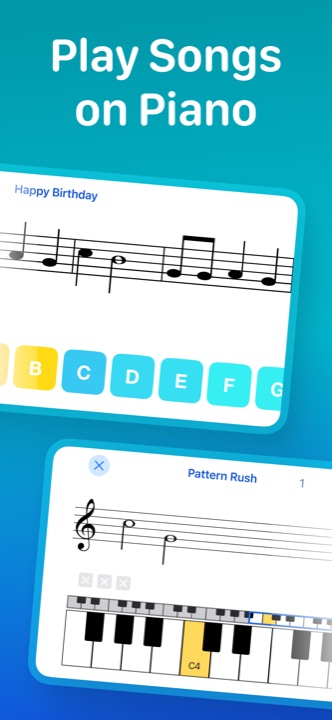
The Melodies tab holds 30 well-known tunes, including Mary Had a Little Lamb, Twinkle Twinkle Little Star, Ode to Joy, Für Elise, Bach's Minuet, Happy Birthday, Frère Jacques and Jingle Bells. Melodies are always written on the treble staff for the right hand, in the song's own key. They use the input you picked in Current settings.
Step 1: scan the whole piece first
The button starts as Scan the melody first and only turns into Start once you have scrolled through the whole piece. Use that moment the way a musician does before sight reading: look for big jumps, repeated notes and where the melody goes up or down.
Step 2: tap Start and play
Start takes you back to the first note and starts a stopwatch. There is no tempo and no metronome: the music moves only when you play, and hesitating never costs points. Go for accuracy first. Speed comes with repetition.
Step 3: keep going when you miss
This is the most important habit, and it depends on how you answer:
- Keyboard, Buttons or MIDI: a wrong note is marked on the staff and the melody moves on to the next note immediately. If you stop and replay the note you missed, the app compares it with the next note. That usually counts as a second miss, and one slip turns into a chain of them. Play the next written note instead and finish the piece.
- Mic: the app waits until it hears the correct pitch, and wrong pitches are not counted. You can correct on the spot, but aim for the same flow anyway.
Keeping going is not just a quirk of the app. It is how musicians play: in a lesson, a rehearsal or a performance the music does not stop for a wrong note. Reading ahead while you play, instead of staring at the note you just missed, is the actual skill of sight reading. Fix the tricky passage on the next run, not in the middle of this one.
Step 4: play it again until it is clean
At the end you see how many notes you scored and missed, your accuracy and your average reaction time. A perfect run also shows your total time and earns a sticker. Replay a song until you get through it without a miss, then try to beat your time.
6. Getting good results with the microphone
- Play one note at a time. The app listens for a single pitch, so chords and overlapping notes get in the way. Let each note sound clearly.
- Re-strike repeated notes. To count the same note twice, the microphone needs a fresh attack: a short gap, then a new strike, pluck or sung onset.
- Adjust the sensitivity for your room. During a mic session, tap Adjust microphone sensitivity at the bottom of the screen. Play or sing a note while dragging the slider: the bar turns blue when you are loud enough to be heard. In a noisy room, set it so background noise alone does not turn the bar blue.
- Guitar and men's voices: both sound an octave lower than written, so set Shift octave to +1.
- Transposing instruments: under Transposition pick B♭ (trumpet, clarinet, tenor sax), E♭ (alto and baritone sax), F (French horn), A (A clarinet) or G (alto flute). The app then expects the pitch your instrument actually sounds, so you read and finger exactly as you do in real music. More in practicing with your real instrument.
7. Tracking progress
- Session summary after every activity: score, misses, accuracy, reaction time, and often a line naming the note that kept slipping.
- Your Progress (the stats screen): streaks, sessions this month, Mastered Notes (90% accuracy or better over at least 5 tries) and Review Mistakes, the notes you struggle with most. Point Custom notes at those.
- Practice Reminder in Settings sends a daily notification at the time you choose. A few minutes every day beats one long session a week.
Common questions
What happens if I play a wrong note in a melody?
Does the app keep a tempo or scroll the music automatically?
Which activity should a beginner start with?
Can I answer on a real piano, guitar or with my voice?
Why does the app not hear my repeated notes?
 Try it in Learn Music Notes Piano
Start with Flashcards on Notes on Lines, work up to Note Runs, then play your first song in the Melodies tab. Answer on the on-screen piano, on note-name buttons, on a MIDI keyboard, or on your own instrument through the microphone.